Page History
| Note | |||||
|---|---|---|---|---|---|
|
| Note | |||||
|---|---|---|---|---|---|
|
Voraussetzungen:
- Ein Smartphone oder Tablet mit dem Betriebssystem iOS oder Android
- HFT-WLAN Verbindung
- Microsoft Authenticator-App
- HFT-Microsoft-Konto
Requirements:
- A smartphone or tablet running iOS or Android
- An HFT HFT Wi-Fi Connection
- The Microsoft Authenticator app
- An HFT Microsoft account
Schritt 1: Anmelden im Microsoft-Konto
Önen Sie auf Ihrem Computer oder Laptop in Ihrem Microsoft Konto den Bereich
Sicherheitsinformationen unter https://mysignins.microsoft.com/security-info.
Navigieren Sie zum Bereich „Sicherheitsinformationen“ und Klicken Sie dort die Option
"Anmeldemethode hinzufügen" an.
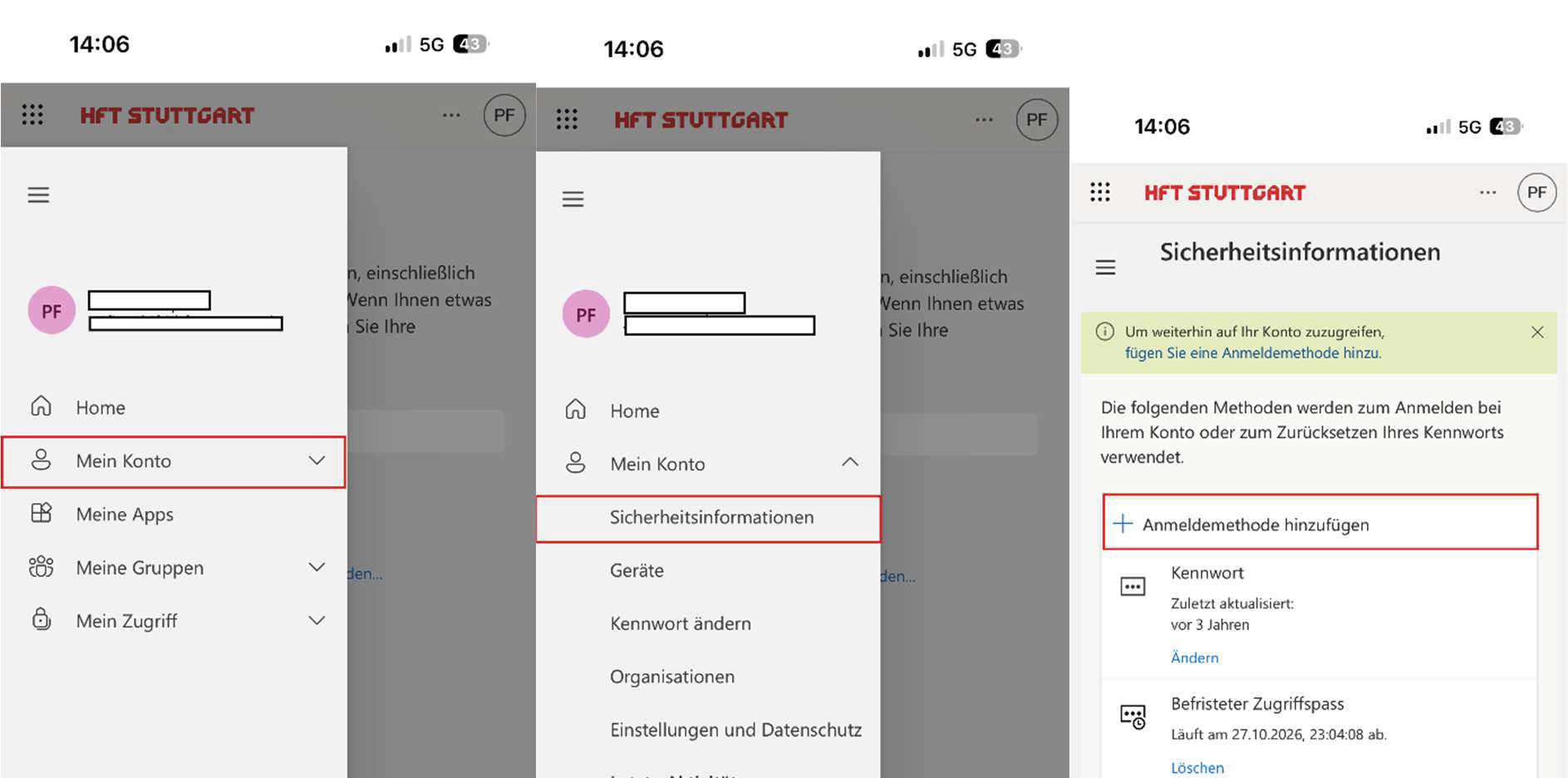
Step 1: Sign in to your Microsoft account
On your computer or laptop, go to the
Security Information section of your Microsoft account at https://mysignins.microsoft.com/security-info.
Navigate to the "Security Information" section and click the
"Add a sign-in method" option.
Schritt 2: Authenticator-App als Anmeldemethode hinzufügen
In einem neuen Fenster werden Sie gefragt, welche Methode Sie hinzufügen möchten.
Wählen Sie die Option "Microsoft Authenticator" aus der Liste.
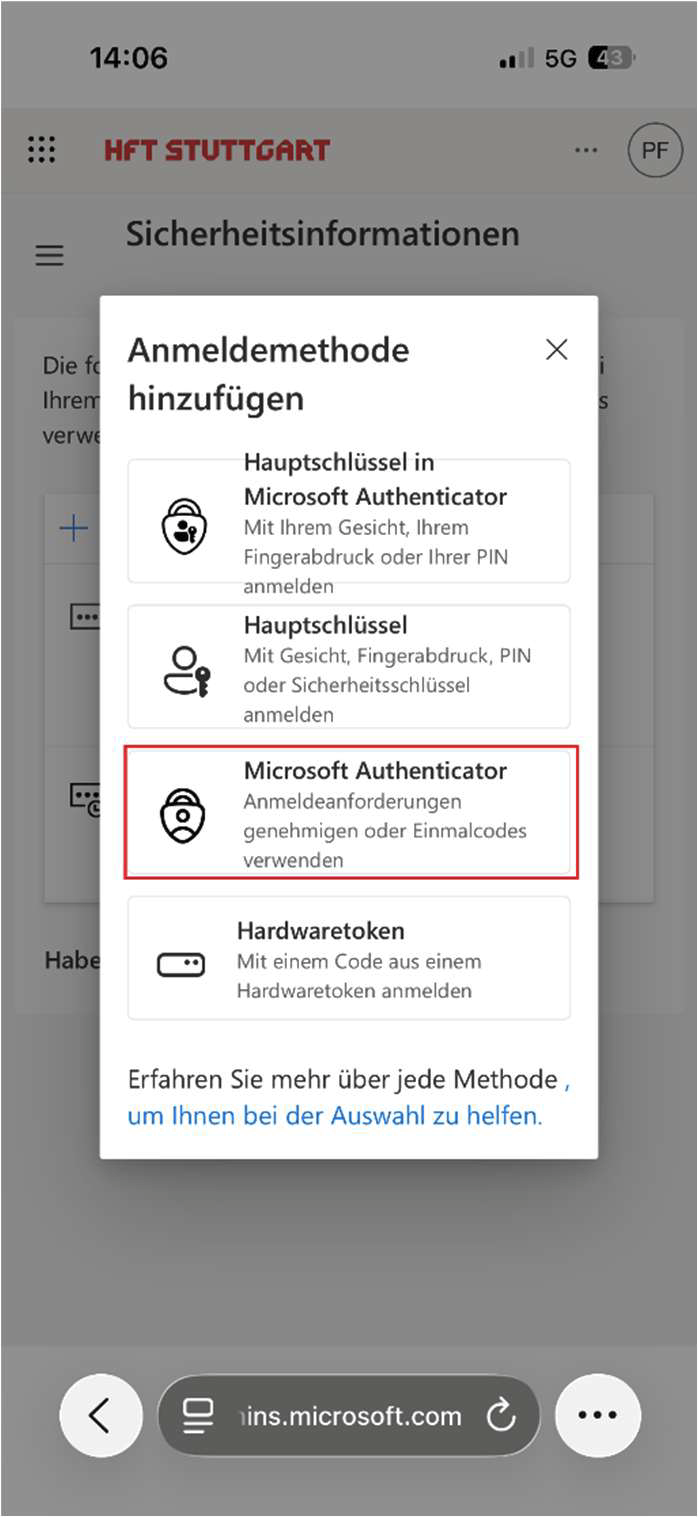
Step 2: Add the Authenticator app as a sign-in method
A new window will open asking which method you want to add.
Select the "Microsoft Authenticator" option from the list.
Schritt 3: MS Authenticator-App installieren
Haben Sie die MS Authenticator-App bereits auf Ihrem Smartphone oder Tablet? Dann
können Sie diesen Schritt mit "Weiter" überspringen.
Andernfalls önen Sie den App Store (für iOS) oder Google Play Store (für Android) auf
Ihrem Smartphone oder Tablet. Suchen Sie nach "Microsoft Authenticator" und laden
Sie die App herunter.
Klicken Sie im Anschluss auf Ihrem Bildschirm "Weiter".
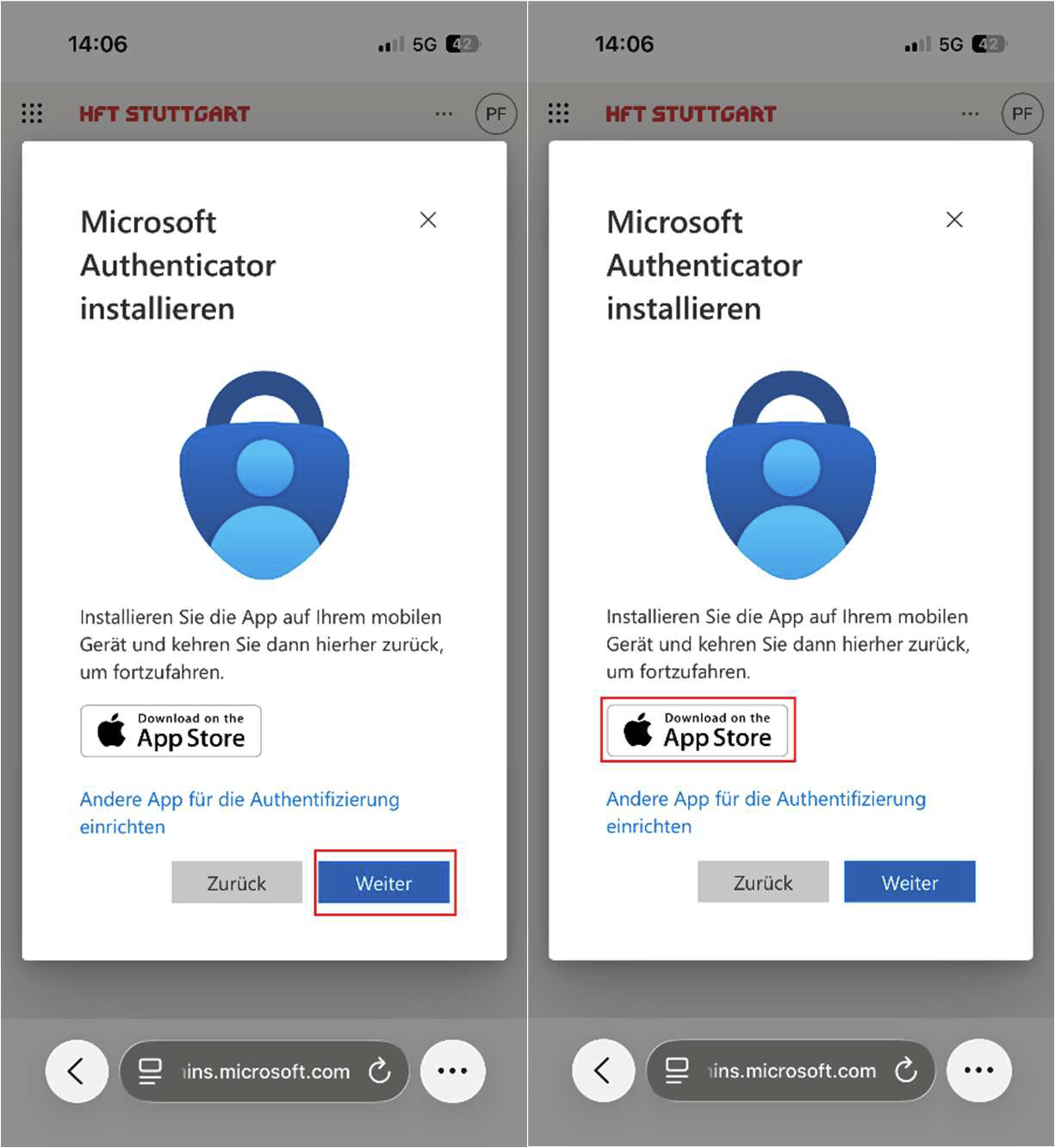
Step 3: Install the MS Authenticator app
Do you already have the MS Authenticator app on your smartphone or tablet?
If so, you can skip this step by clicking "Next."
Otherwise, open the App Store (for iOS) or Google Play Store (for Android) on your smartphone or tablet.
Search for “Microsoft Authenticator” and download the app. Then tap “Next” on your screen.
Schritt 4: Koppeln des Accounts mit der App
Nachdem Sie auf „Weiter“ geklickt haben, klicken Sie hier auf den Text „Koppeln Sie Ihr
Konto mit der App, indem Sie auf diesen Link klicken“ und werden dann im Anschluss
weitergeleitet.
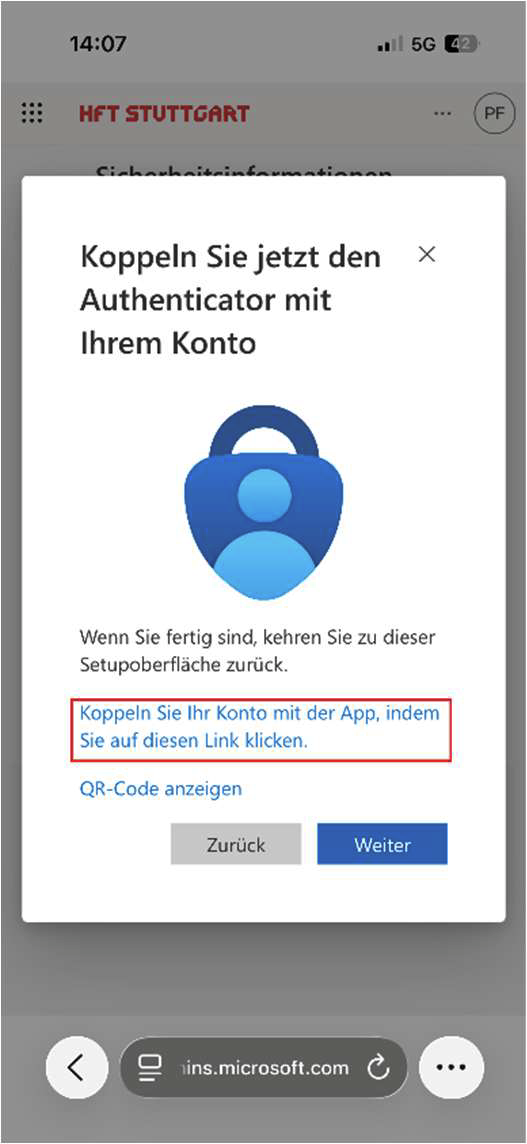
Step 4: Linking Your Account to the App
After you click “Next,” click the text that says “Link your account to the app by clicking this link,” and you’ll then be
redirected.
Schritt 5: Erste Schritte in der Authenticator-App & Benachrichtigungen erlauben
Um die Einrichtung der MS Authenticator-App auf Ihrem Smartphone/Tablet
abzuschließen, müssen Sie Push-Benachrichtigungen zulassen damit Sie die
Anforderungen der App erhalten. Wenn bei ihnen folgende Meldung aufpoppt, dann
wechseln Sie wieder in den Browser und klicken dort auf „Weiter“.
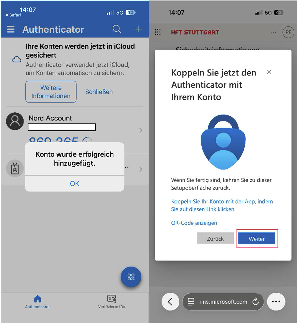
Step 5: Getting Started with the Authenticator App & Allowing Notifications
To complete the setup of the MS Authenticator app on your smartphone or tablet, you must allow
push notifications so you can receive the app’s prompts. If the following message pops up, switch back to the browser
and click “Continue.”
Schritt 6: Push-Benachrichtigungen testen
Jetzt sehen Sie auf Ihrem Bildschirm eine beliebige zweistellige Zahl.
Gleichzeitig erhalten Sie auf Ihrem Smartphone oder Tablet eine Mitteilung. Tippen Sie
die Zahl, die Sie auf Ihrem Computer sehen, in der App auf Ihrem Smartphone oder
Tablet ein und bestätigen Sie mit "Genehmigen".
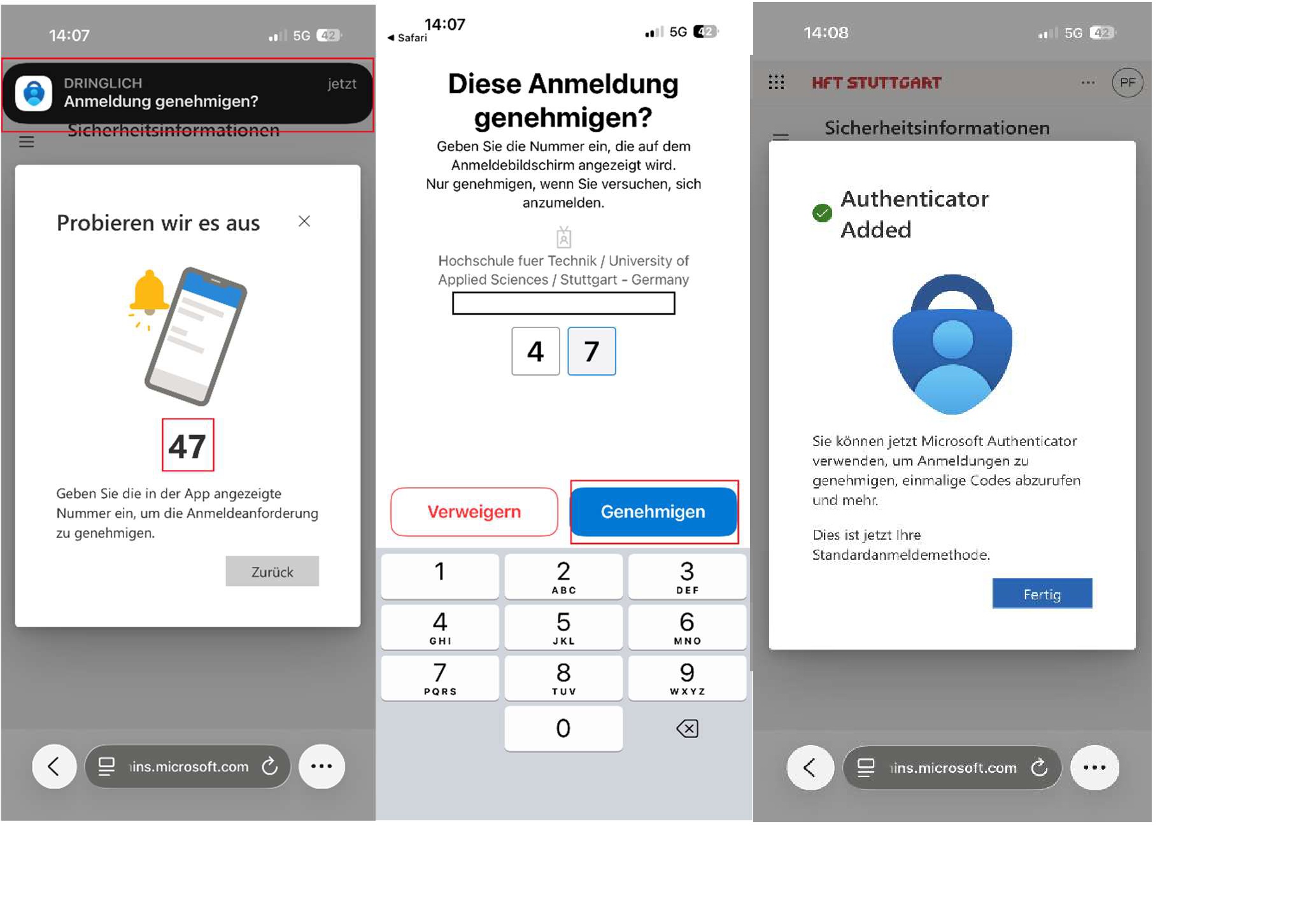
Step 6: Test push notifications
You will now see a two-digit number on your screen. At the same time, you will receive
a notification on your smartphone or tablet. Enter the number you see on your computer into the
app on your smartphone or tablet and confirm by tapping "Approve."
