Page History
| Note | |||||
|---|---|---|---|---|---|
|
| Note | |||||
|---|---|---|---|---|---|
|
Allgemeinen Link für die Microsoft Multifaktor-Authentifizierung (MFA) aufrufen.
Allgemeiner MFA-Link: https://aka.ms/mfasetup
Use general link for the Microsoft Multi-factor Authentication (MFA).
HFT E-Mail-Adresse in der Microsoft Anmeldemaske eingeben und auf "Weiter" klicken.
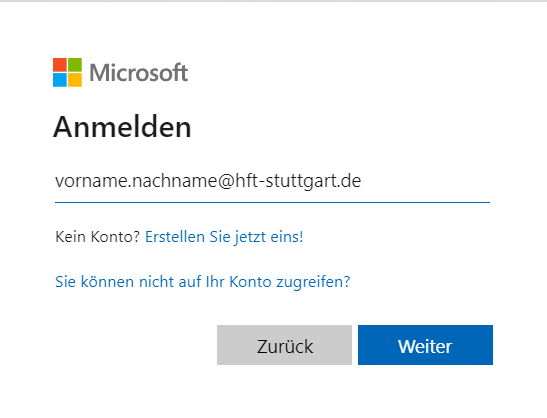
Enter your HFT e-mail address into the Microsoft login mask and click on "Next".
In der Anmeldemaske erscheint "HFT Stuttgart" etc.
Geben Sie nun Ihr HFT-Kennwort (Moodle, E-Mail...) ein.
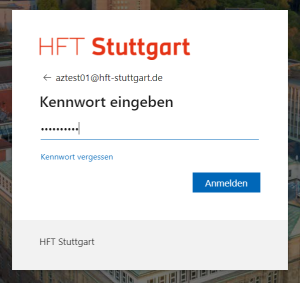
"HFT Stuttgart" appears in the login screen etc.
Now enter your HFT password (Moodle, E-Mail...).
Akzeptieren Sie den Hinweis "Weitere Informationen erforderlich" mit "Weiter".
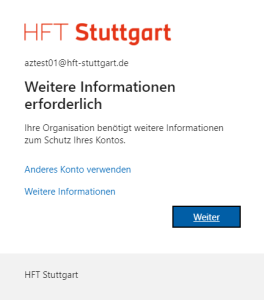
Accept the note "Further information required" with "Next".
Microsoft bietet Ihnen die "Microsoft Authenticator" App zur Installation auf Ihr Smartphone an.
Sie können auch andere, passende Authenticator Apps benützen. Z.B. Google Authenticator, FreeOTP etc... (Dafür bieten wir allerdings keine Anleitung.)
Wenn Sie die Microsoft Authenticator App auf Ihrem Smartphone installiert haben, klicken Sie auf den Weiter-Button.
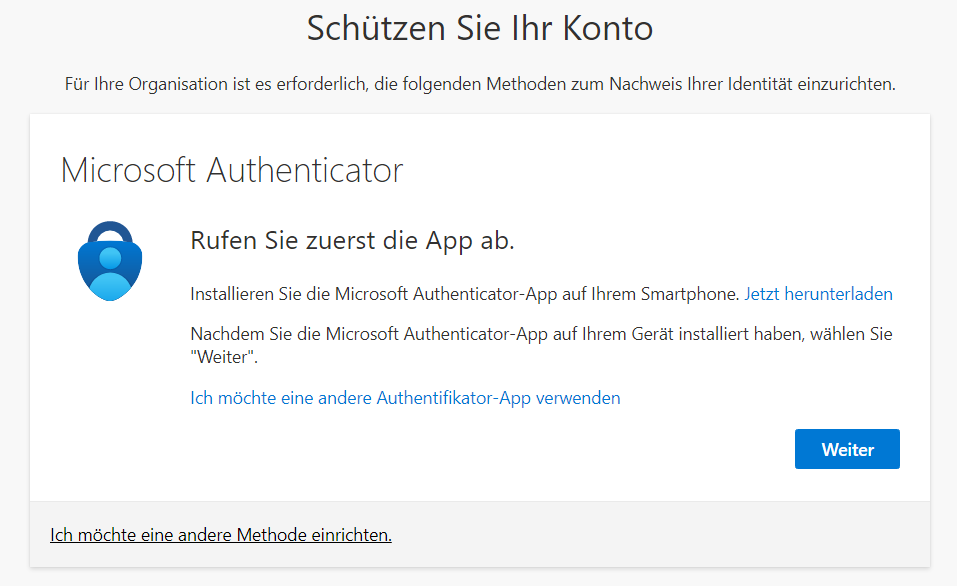
Microsoft offers you the "Microsoft Authenticator" app to install on your smartphone.
You can also use other suitable authenticator apps. E.g. Google Authenticator, FreeOTP etc... (However, we do not provide instructions for this.)
Once you have installed the Microsoft Authenticator app on your smartphone, click the Next button.
Eine Anleitung zur Installation der MS Authenticator App auf Ihrem Smartphone finden Sie hier: Microsoft Authenticator App auf Smartphone installieren
An instruction how to install the MS Authenticator App on your smartphone can be found here: Install Microsoft Authenticator on Smartphone
Voraussetzungen:
- Ein Smartphone oder Tablet mit dem Betriebssystem iOS oder Android
- HFT-WLAN Verbindung
- Microsoft Authenticator-App
- HFT-Microsoft-Konto
Requirements:
- A smartphone or tablet running iOS or Android
- An HFT HFT Wi-Fi Connection
- The Microsoft Authenticator app
- An HFT Microsoft account
Schritt 1: Anmelden im Microsoft-Konto
Öffnen Sie auf Ihrem Computer oder Laptop in Ihrem Microsoft Konto den Bereich
Sicherheitsinformationen unter https://mysignins.microsoft.com/security-info.
Navigieren Sie zum Bereich „Sicherheitsinformationen“ und Klicken Sie dort die Option
"Anmeldemethode hinzufügen" an.
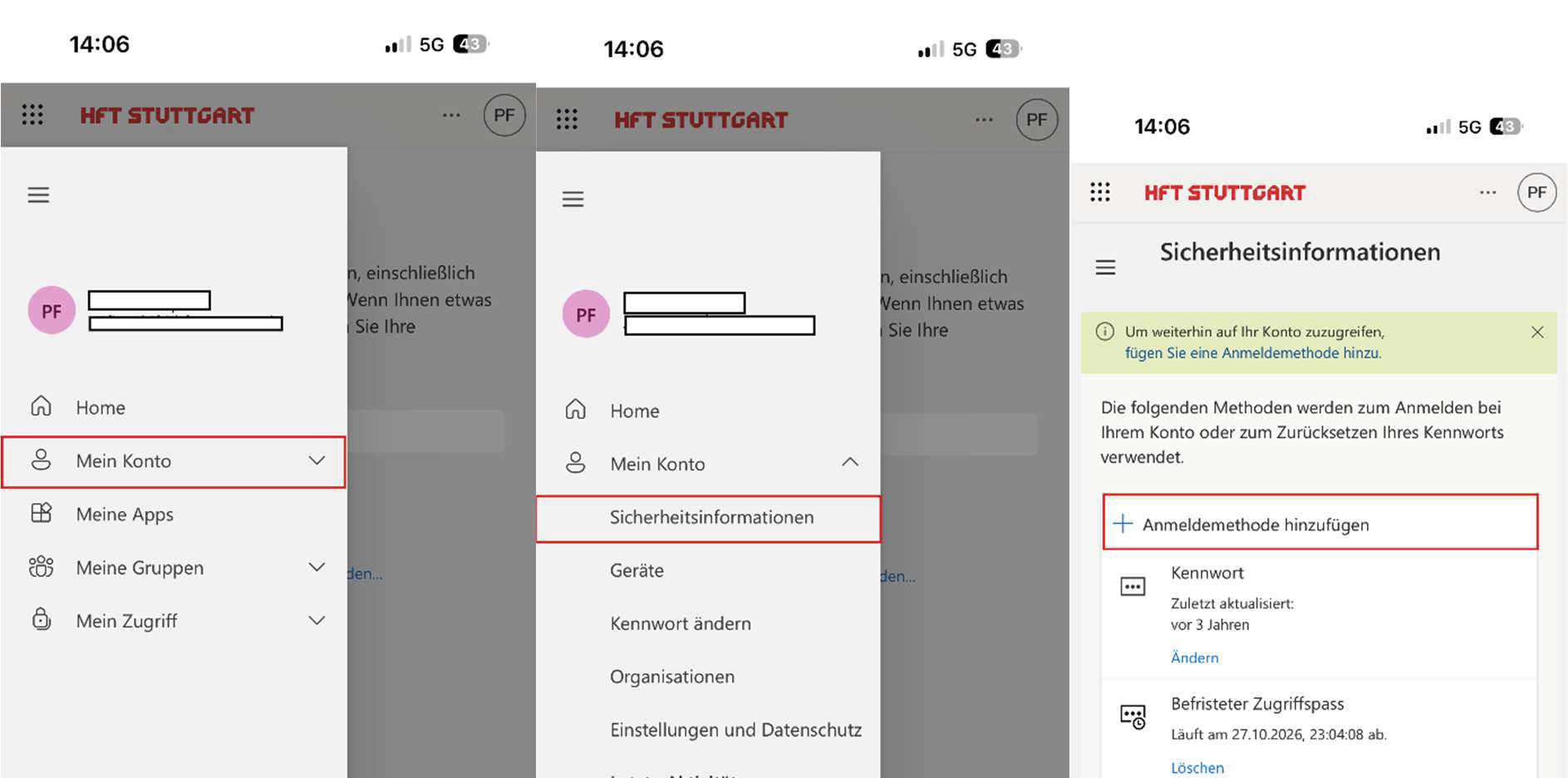
Step 1: Sign in to your Microsoft account
On your computer or laptop, go to the
Security Information section of your Microsoft account at https://mysignins.microsoft.com/security-info.
Navigate to the "Security Information" section and click the
"Add a sign-in method" option.
Schritt 2: Authenticator-App als Anmeldemethode hinzufügen
In einem neuen Fenster werden Sie gefragt, welche Methode Sie hinzufügen möchten.
Wählen Sie die Option "Microsoft Authenticator" aus der Liste.
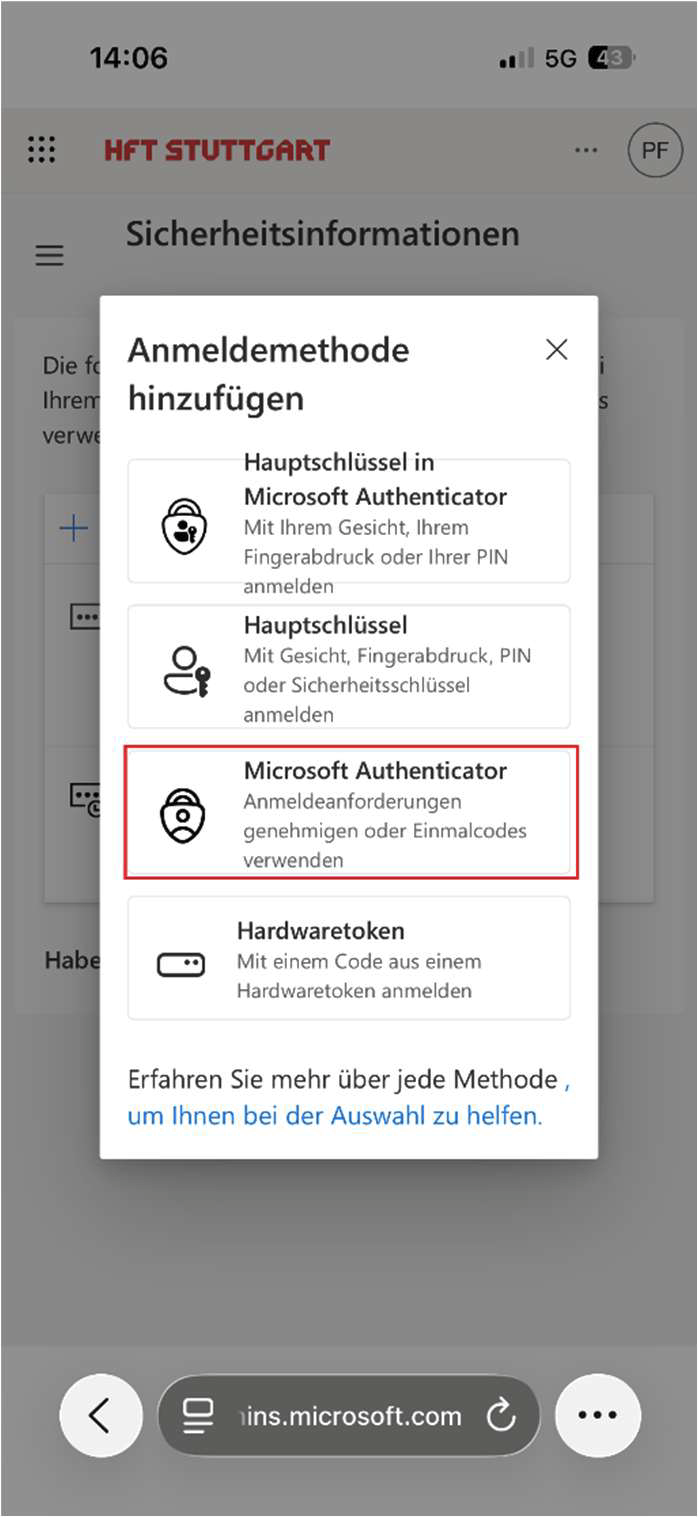
Step 2: Add the Authenticator app as a sign-in method
A new window will open asking which method you want to add.
Select the "Microsoft Authenticator" option from the list.
Schritt 3: MS Authenticator-App installieren
Haben Sie die MS Authenticator-App bereits auf Ihrem Smartphone oder Tablet? Dann
können Sie diesen Schritt mit "Weiter" überspringen.
Andernfalls önen Sie den App Store (für iOS) oder Google Play Store (für Android) auf
Ihrem Smartphone oder Tablet. Suchen Sie nach "Microsoft Authenticator" und laden
Sie die App herunter.
Klicken Sie im Anschluss auf Ihrem Bildschirm "Weiter".
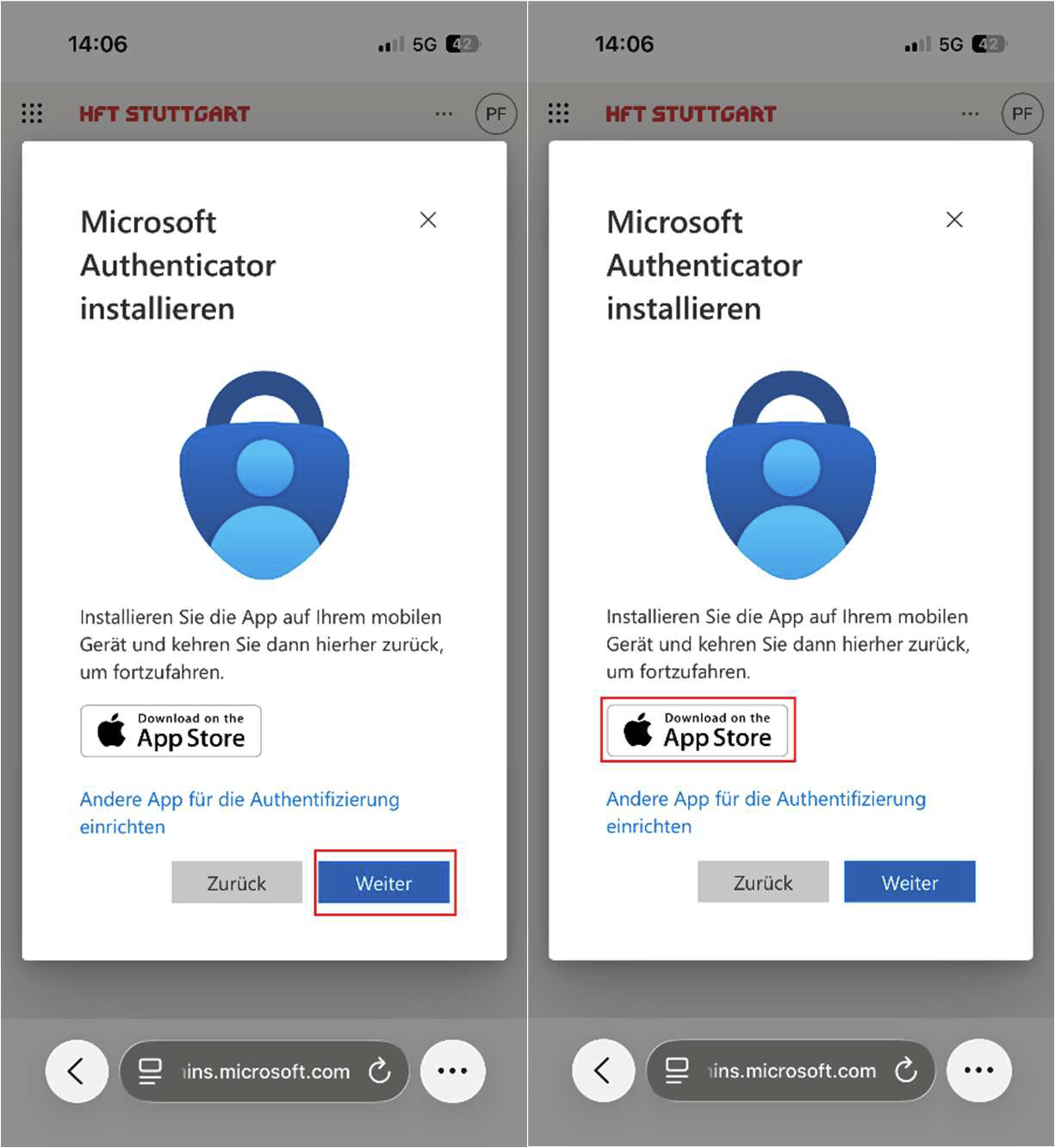
Step 3: Install the MS Authenticator app
Do you already have the MS Authenticator app on your smartphone or tablet?
If so, you can skip this step by clicking "Next."
Otherwise, open the App Store (for iOS) or Google Play Store (for Android) on your smartphone or tablet.
Search for “Microsoft Authenticator” and download the app. Then tap “Next” on your screen.
Schritt 4: Koppeln des Accounts mit der App
Nachdem Sie auf „Weiter“ geklickt haben, klicken Sie hier auf den Text „Koppeln Sie Ihr
Konto mit der App, indem Sie auf diesen Link klicken“ und werden dann im Anschluss
weitergeleitet.
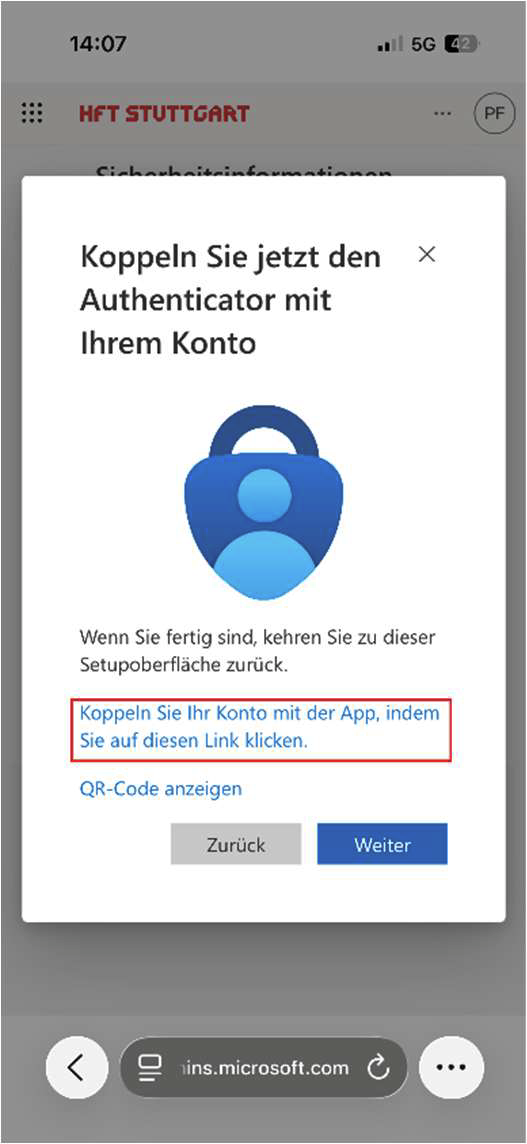
Step 4: Linking Your Account to the App
After you click “Next,” click the text that says “Link your account to the app by clicking this link,” and you’ll then be
redirected.
Schritt 5: Erste Schritte in der Authenticator-App & Benachrichtigungen erlauben
Um die Einrichtung der MS Authenticator-App auf Ihrem Smartphone/Tablet
abzuschließen, müssen Sie Push-Benachrichtigungen zulassen damit Sie die
Anforderungen der App erhalten. Wenn bei ihnen folgende Meldung aufpoppt, dann
wechseln Sie wieder in den Browser und klicken dort auf „Weiter“.
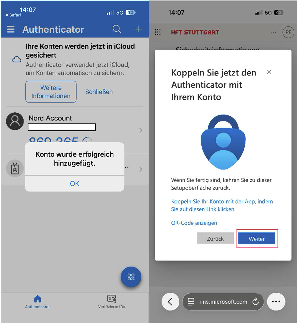
Step 5: Getting Started with the Authenticator App & Allowing Notifications
To complete the setup of the MS Authenticator app on your smartphone or tablet, you must allow
push notifications so you can receive the app’s prompts. If the following message pops up, switch back to the browser
and click “Continue.”
Schritt 6: Push-Benachrichtigungen testen
Jetzt sehen Sie auf Ihrem Bildschirm eine beliebige zweistellige Zahl.
Gleichzeitig erhalten Sie auf Ihrem Smartphone oder Tablet eine Mitteilung. Tippen Sie
die Zahl, die Sie auf Ihrem Computer sehen, in der App auf Ihrem Smartphone oder
Tablet ein und bestätigen Sie mit "Genehmigen".
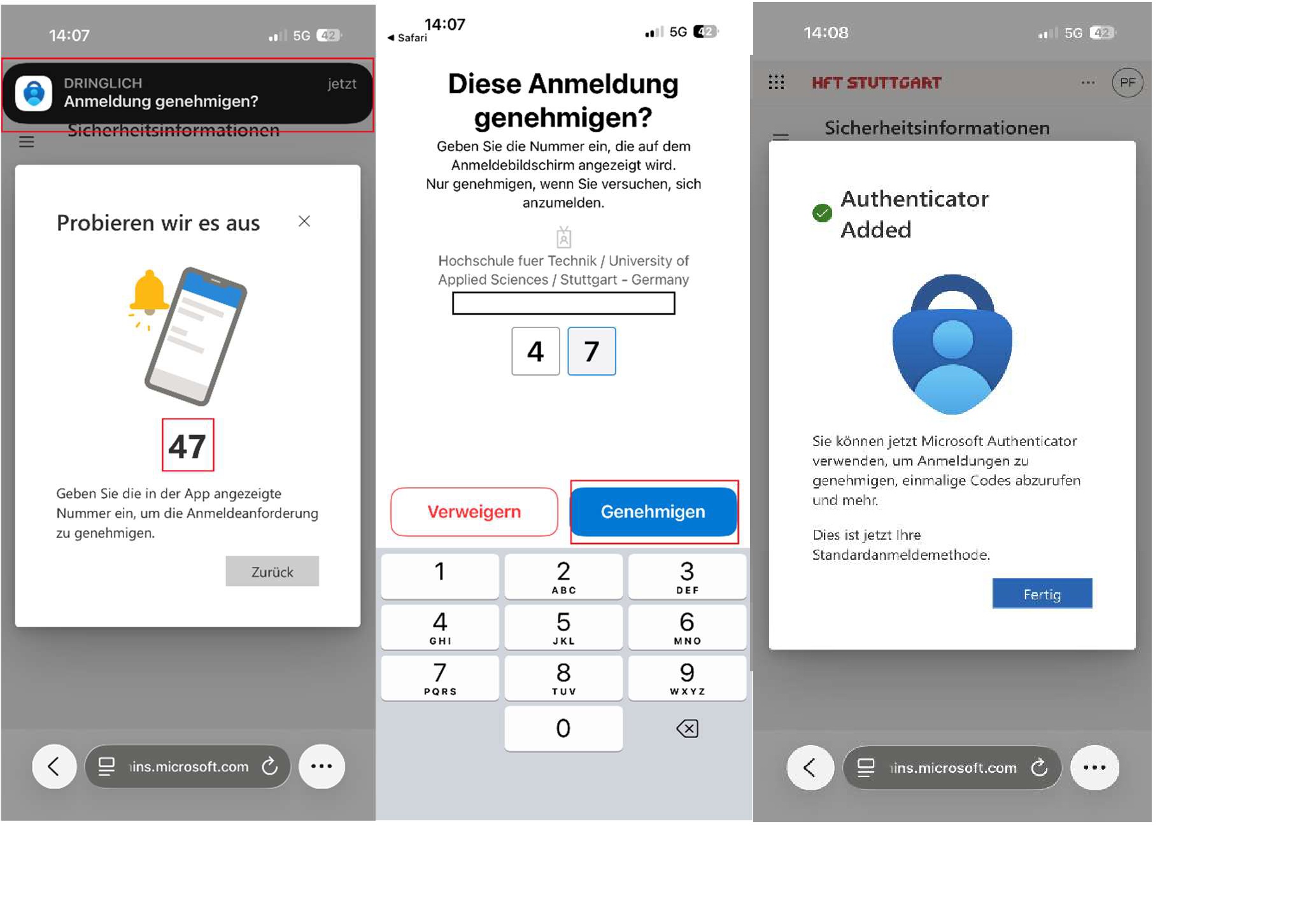
Step 6: Test push notifications
You will now see a two-digit number on your screen. At the same time, you will receive
a notification on your smartphone or tablet. Enter the number you see on your computer into the
app on your smartphone or tablet and confirm by tapping "Approve."
Wenn Sie die MS Authenticator App auf Ihrem Smartphone das erste Mal starten, klicken Sie auf "Konto hinzufügen".
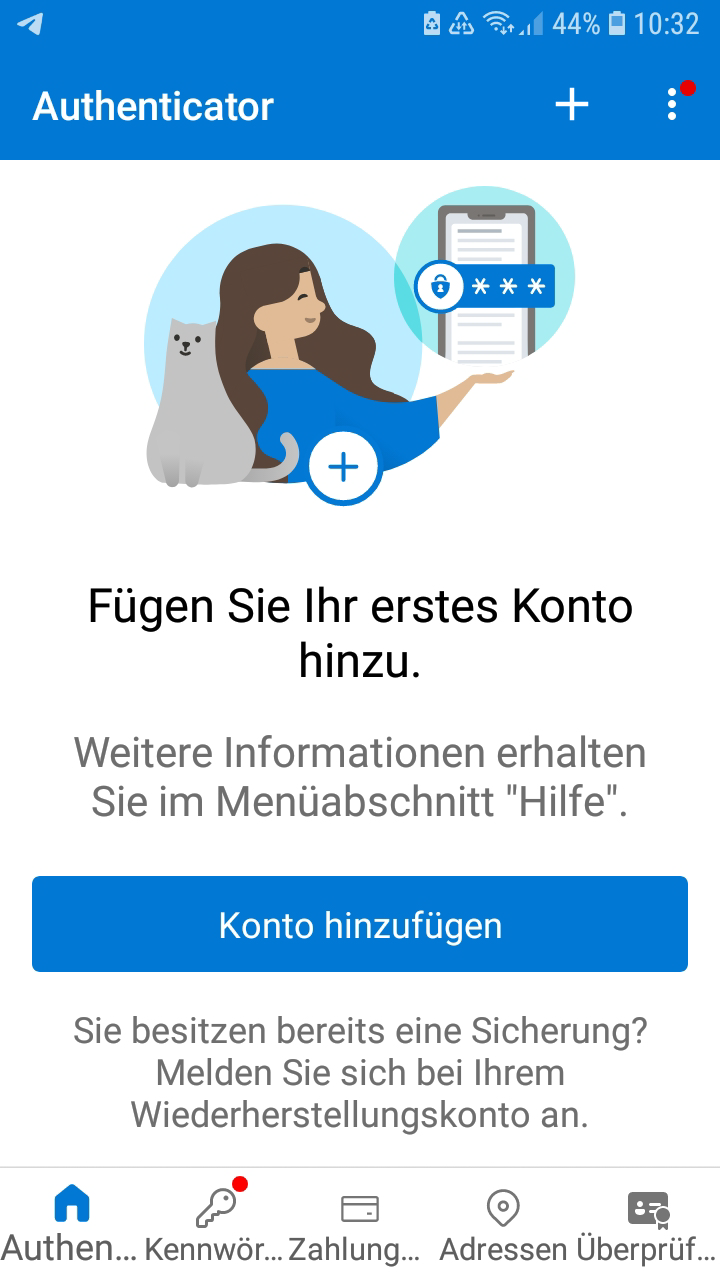
When you launch the MS Authenticator app on your smartphone for the first time, click "Add account".
Wählen Sie "Geschäfts- oder Schulkonto" aus.
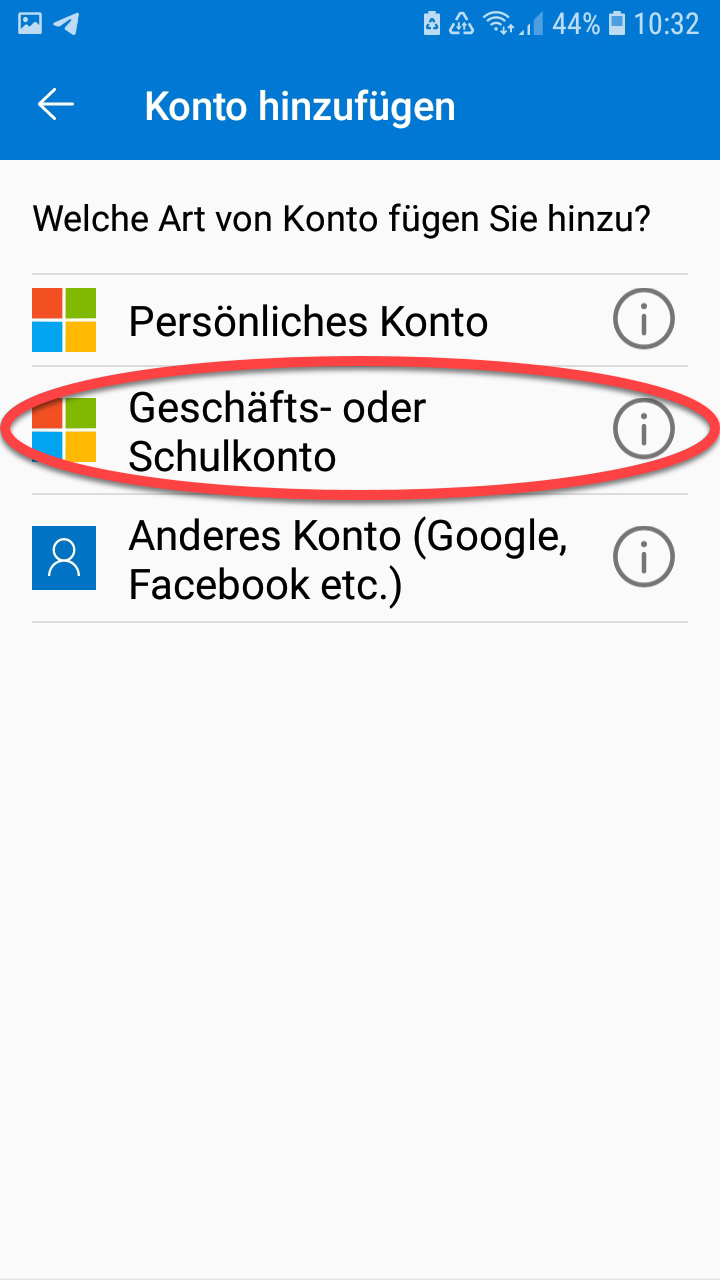
Select "Work or School Account".
Klicken Sie anschließend auf "QR-Code scannen".
Falls Sie gefragt werden, geben Sie der App die notwendige Berechtigung (einmalig ist ausreichend), auf die Kamera Ihres Smartphones zuzugreifen.
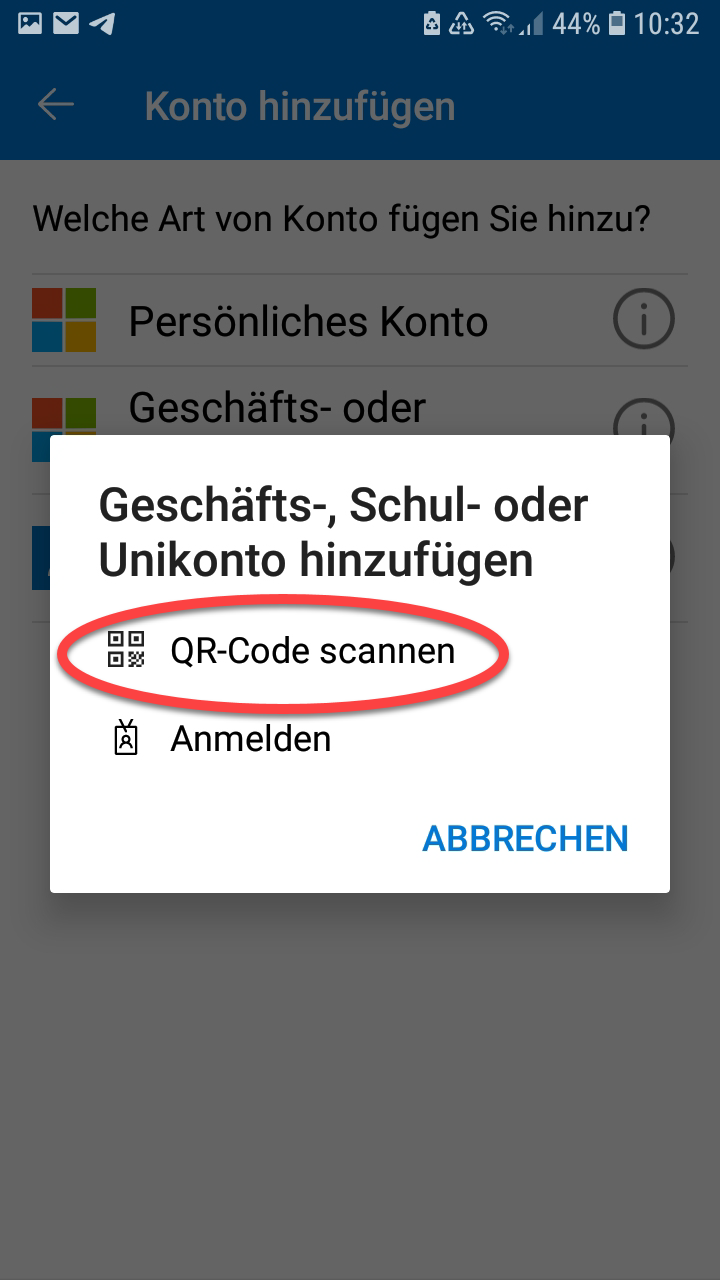
Then click on "Scan QR code".
If asked, give the app the necessary permission (once is enough) to access your smartphone's camera.
Scannen Sie den in Ihrem Browser-Fenster angezeigten Microsoft QR-Code ( https://aka.ms/mfasetup ; vgl. oben ) und klicken Sie anschließend auf "Weiter".
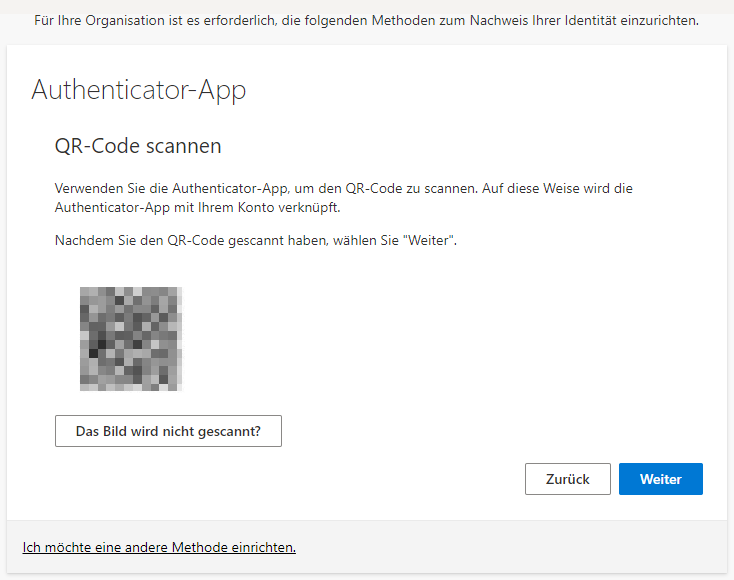
(Beispiel-Bild)
Scan the Microsoft QR code displayed in your browser window ( https://aka.ms/mfasetup ; see above ) and then click "Next".
Erlauben Sie die Anmeldung mit "Genehmigen"
(Je nach Smartphone kann das Design / die Gestaltung dieser Genehmigungs-Anfrage variieren.)
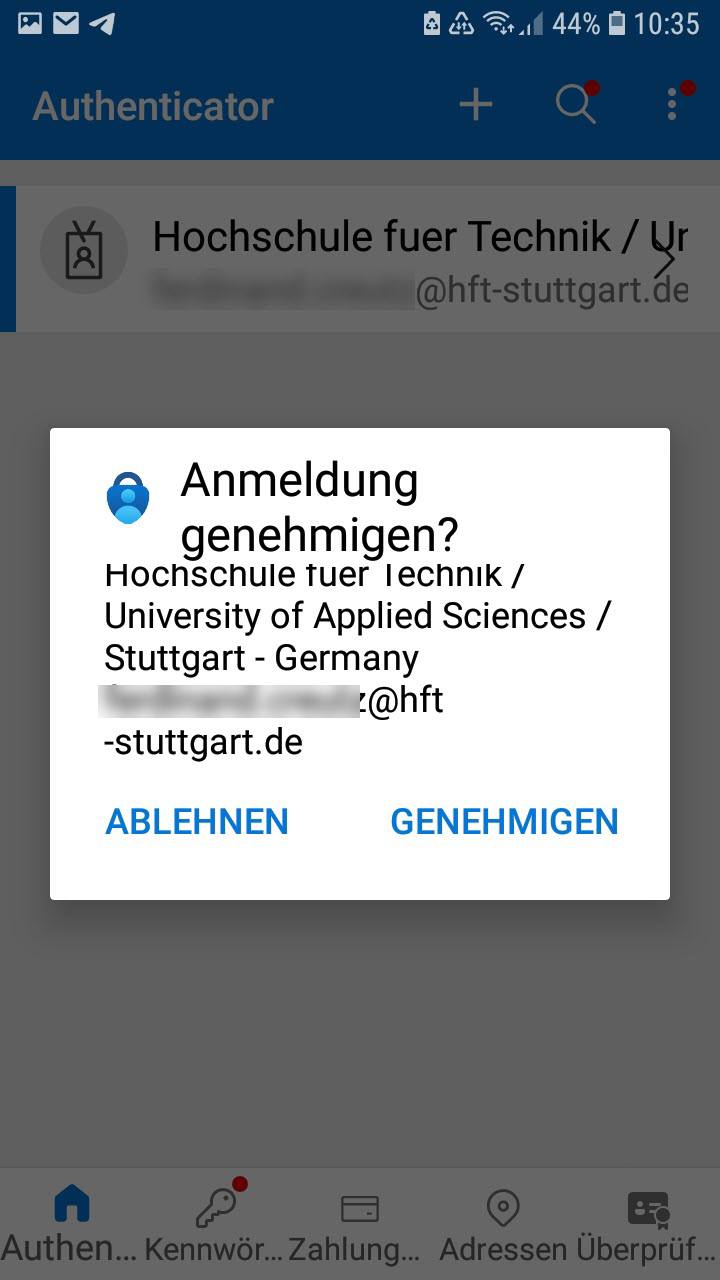
Please allow the registration by click on 'approve'.
(Depending on the smartphone, the design / layout of this permission request may vary.)
Nach dem Genehmigungsprozess mit "Weiter" bestätigen.
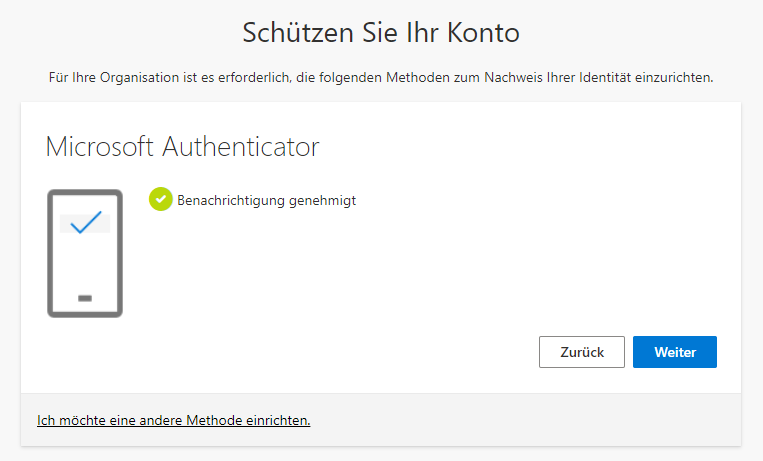
After the approval process, confirm with "Next".
Wenn alles funktioniert hat, können Sie mit "Fertig" das Fenster schließen
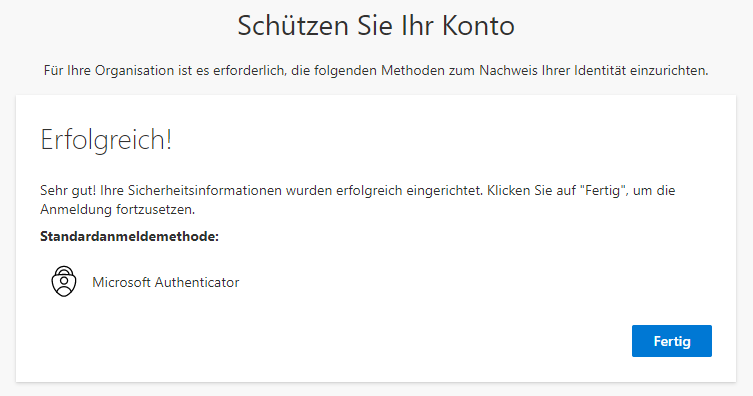
If everything has worked, you can close the window with "Done".
Es öffnet sich das Fenster der Sicherheitsinformationen ihres HFT Azure Accounts.
Hier sehen Sie die von Ihnen festgelegte Anmeldemethode(n).
Sie können sie nach Bedarf löschen bzw. (eine) andere Methode(n) hinzufügen.
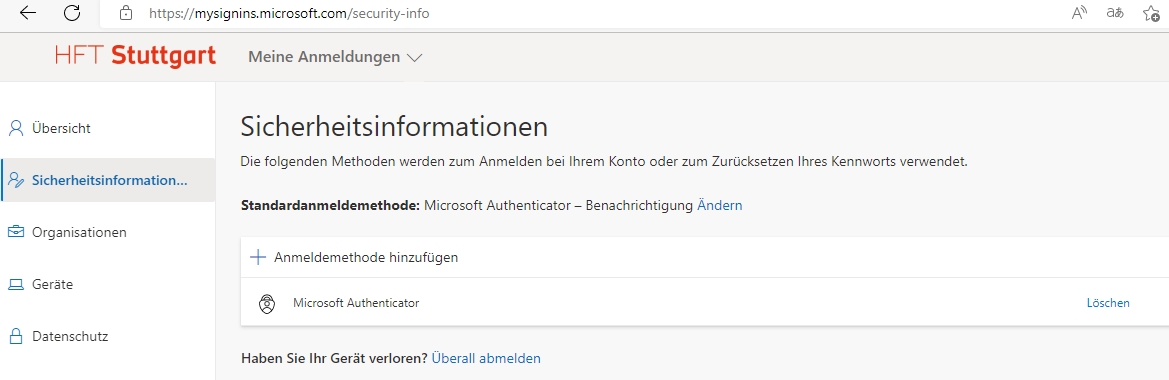
The security information window of your HFT Azure account will open.
Here you can see the login method you have set.
You can delete tjhem or add (another) method(s) as needed.
