Je nach System nutzen Sie folgenden Anbieterfür diese Synchronisation: | Depending on your system, use the following providerfor this synchronization: | |
|
| |
Synchronisierte Passkeys für Apple-User (Mac & iCloud) | Synced Passkeys for Apple Users (Mac & iCloud) | |
Nachfolgend wird die Einrichtung innerhalb des Apple-Ökosystems beschrieben, da diese besonders nahtlos in das Betriebssystem integriert ist. | The following section describes how to set it up within the Apple ecosystem, as it integrates particularly seamlessly with the operating system. | |
Voraussetzungen: | Requirements: | |
|
| |
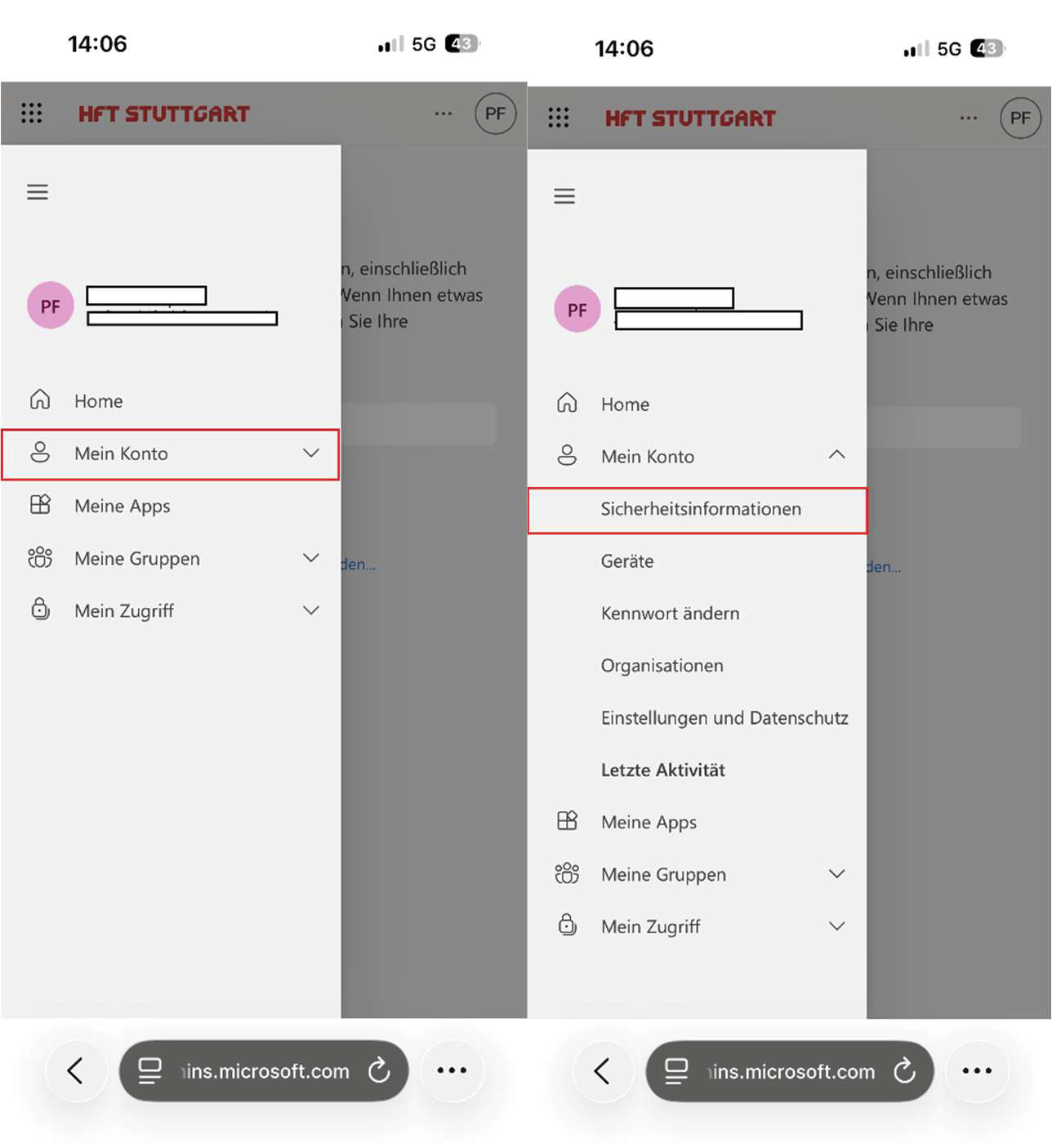
Schritt 1: Sicherheitsoptionen öffnen | Step 1: Open Security Options | |
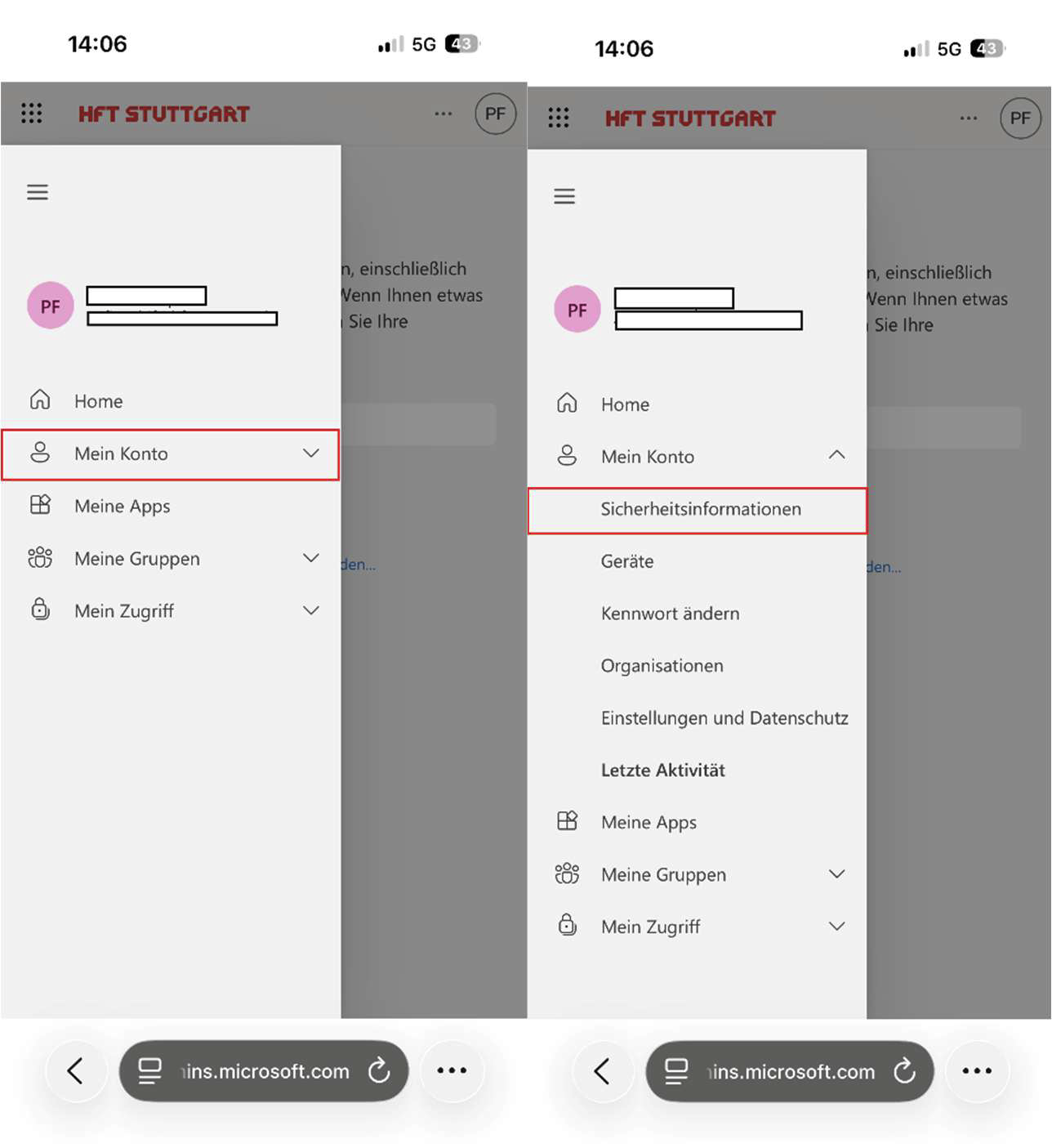
Öffnen Sie Safari auf Ihrem Mac oder iPhone und melden Sie sich unter |
| Open Safari on your Mac or iPhone and sign in at |
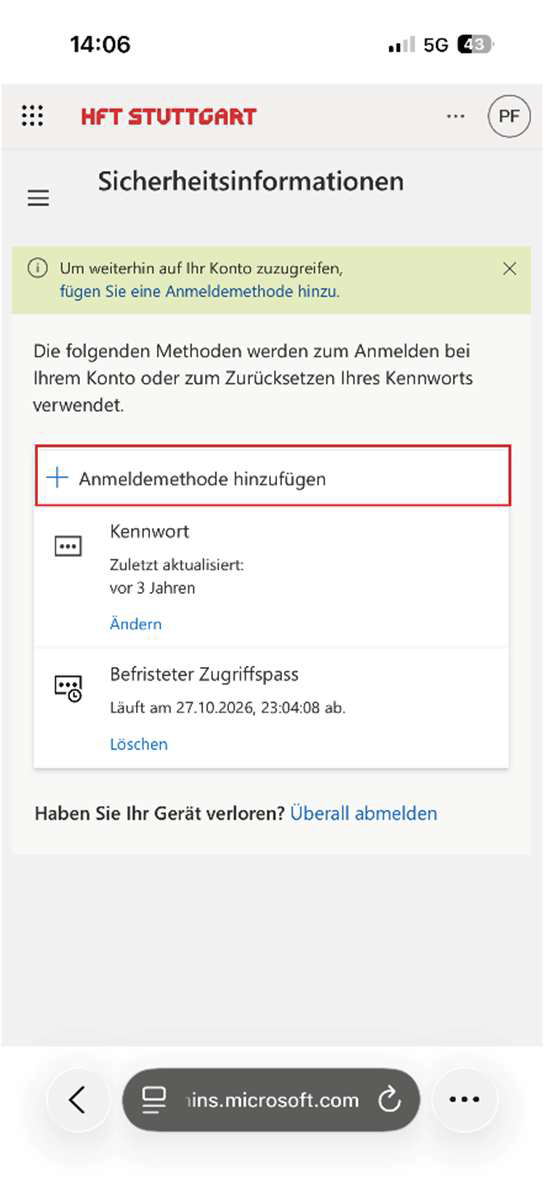
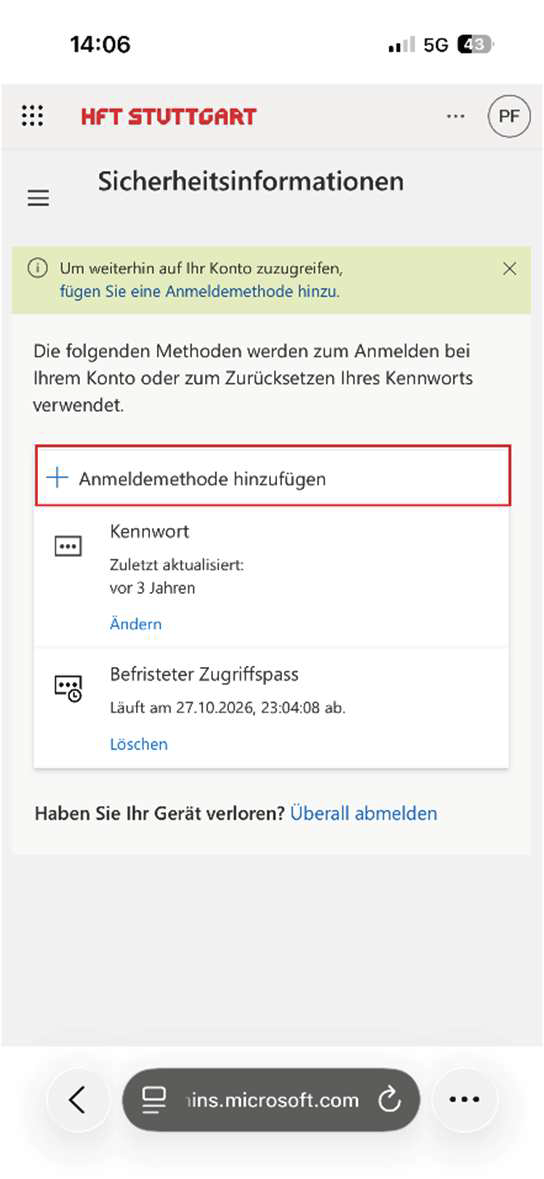
Schritt 2: Anmeldemethode hinzufügen | Step 2: Add a sign-in method | |
Klicken Sie auf "Anmeldemethode hinzufügen". |
| Click "Add Sign-In Method." |
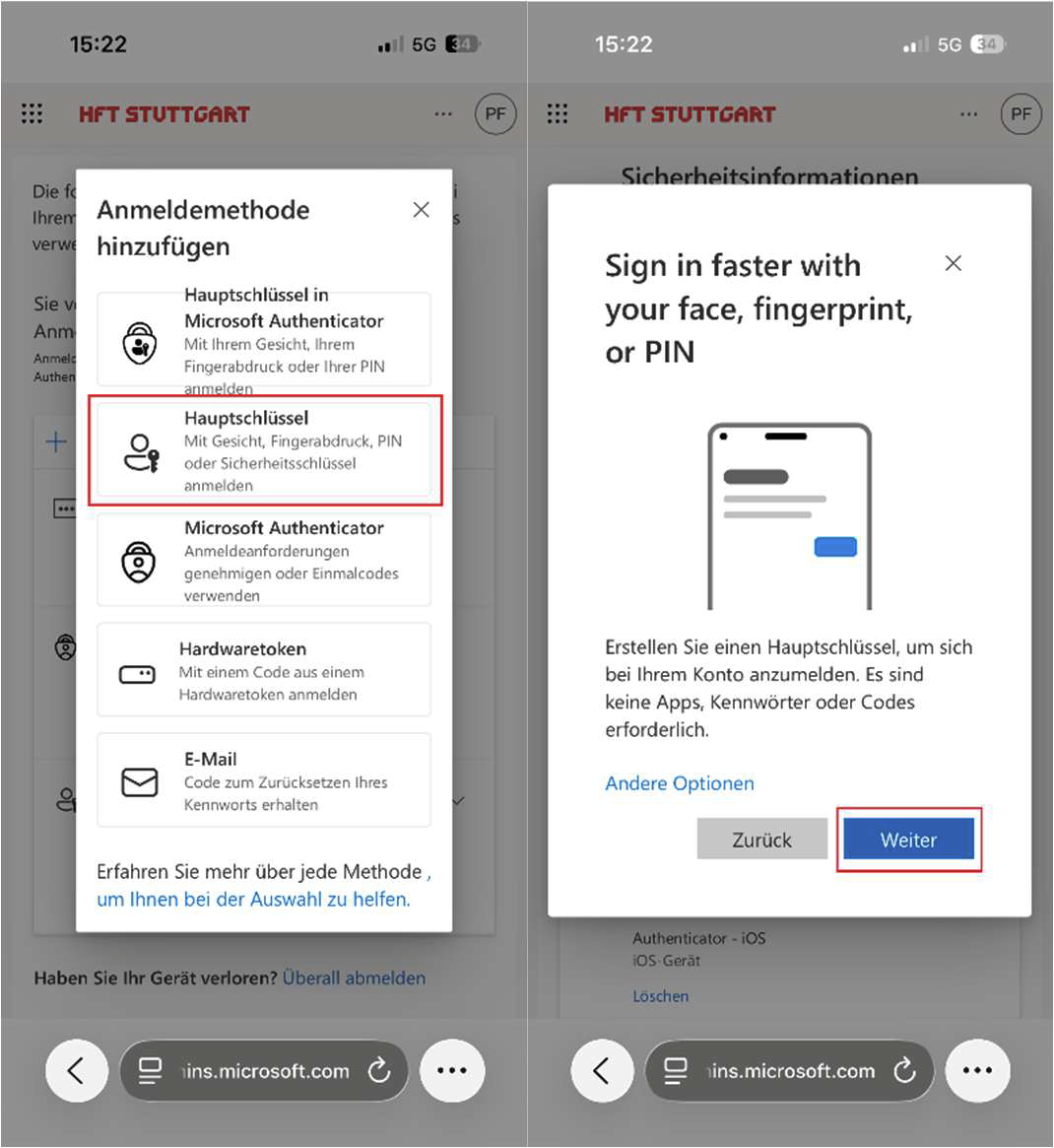
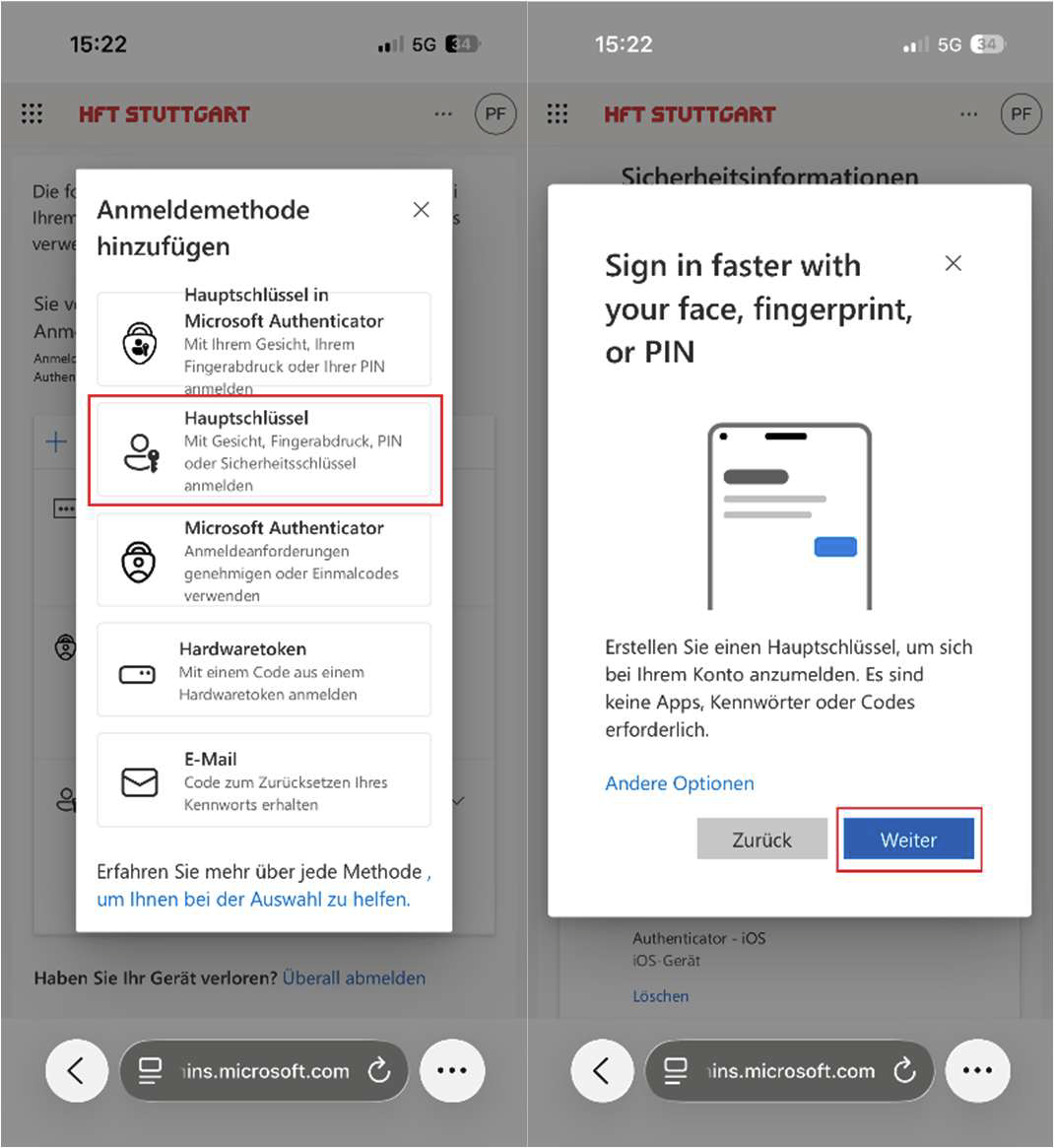
Schritt 3: Sicherheitsschlüssel wählen | Step 3: Select a security key | |
Wählen Sie aus der Liste die Option "Hauptschlüssel" aus und folgen Sie dem Dialog mit "Weiter". |
| Select the "Master Key" option from the list and click "Next" in the |
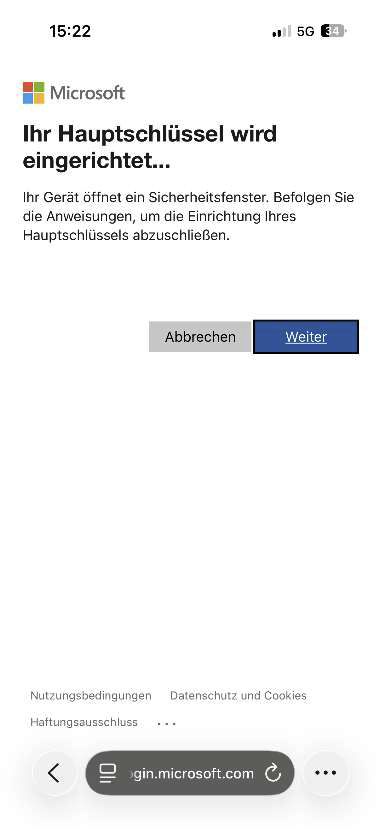
Schritt 4: Passkey hinzufügen | Step 4: Add a passkey | |
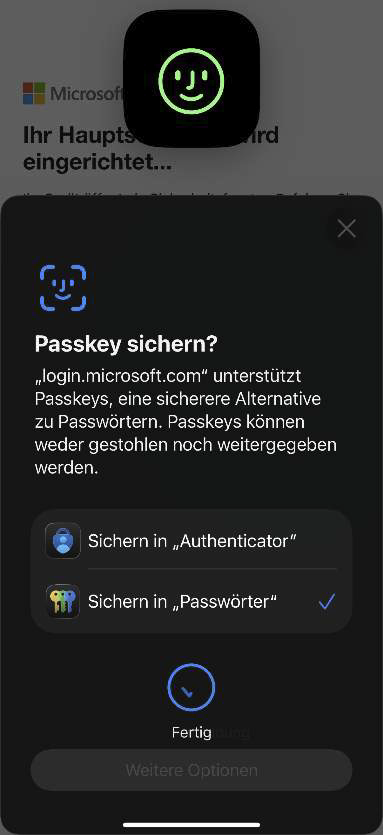
Bestätigen Sie den System-Dialog von macOS oder iOS zur Erstellung eines Passkeys für |
| Confirm the macOS or iOS system dialog to create a passkey for |
Schritt 5: Passkey benennen | Step 5: Name the passkey | |
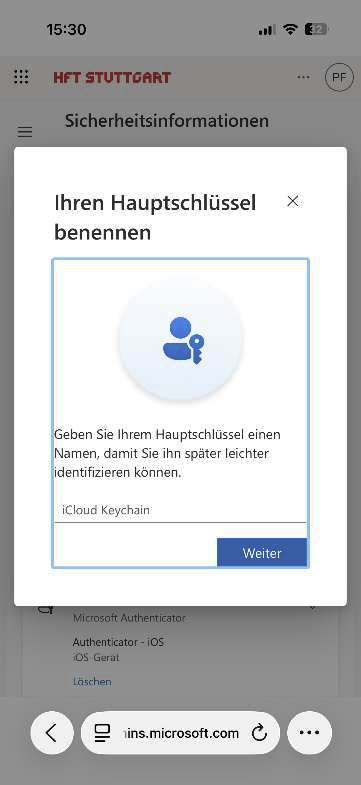
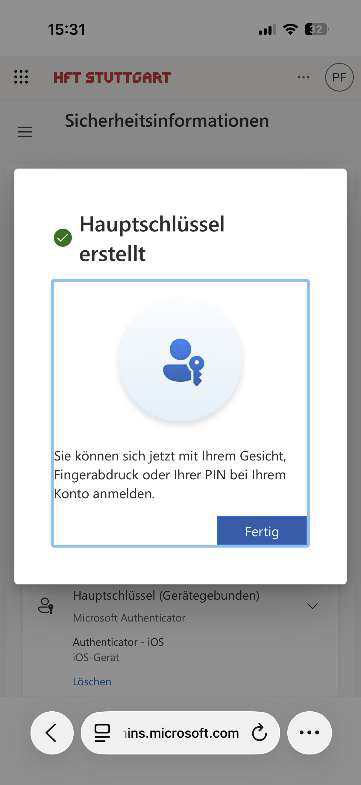
Nach der Erstellung fordert Microsoft Sie auf, dem Passkey einen Namen zu geben (z. B.„iCloud Keychain“). |
| After creating the passkey, Microsoft prompts you to give it a name (e.g., "iCloud Keychain"). |
Synchronisierte Passkeys für Android-User | Synced Passkeys for Android Users | |
Voraussetzungen: | Requirements: | |
|
| |
Schritt 1: Sicherheitsoptionen öffnen | Step 1: Open Security Options | |
Öffnen Sie Safari auf Ihrem Android Gerät und melden Sie sich unter |
| Open Safari on your Android device and log in at |
Schritt 2: Anmeldemethode hinzufügen | Step 2: Add a sign-in method | |
Klicken Sie auf "Anmeldemethode hinzufügen". |
| Click "Add Sign-In Method." |
Schritt 3: Sicherheitsschlüssel wählen | Step 3: Select a security key | |
Wählen Sie aus der Liste die Option "Hauptschlüssel" aus und folgen Sie dem Dialog |
| Select the "Master Key" option from the list and proceed through the dialog |
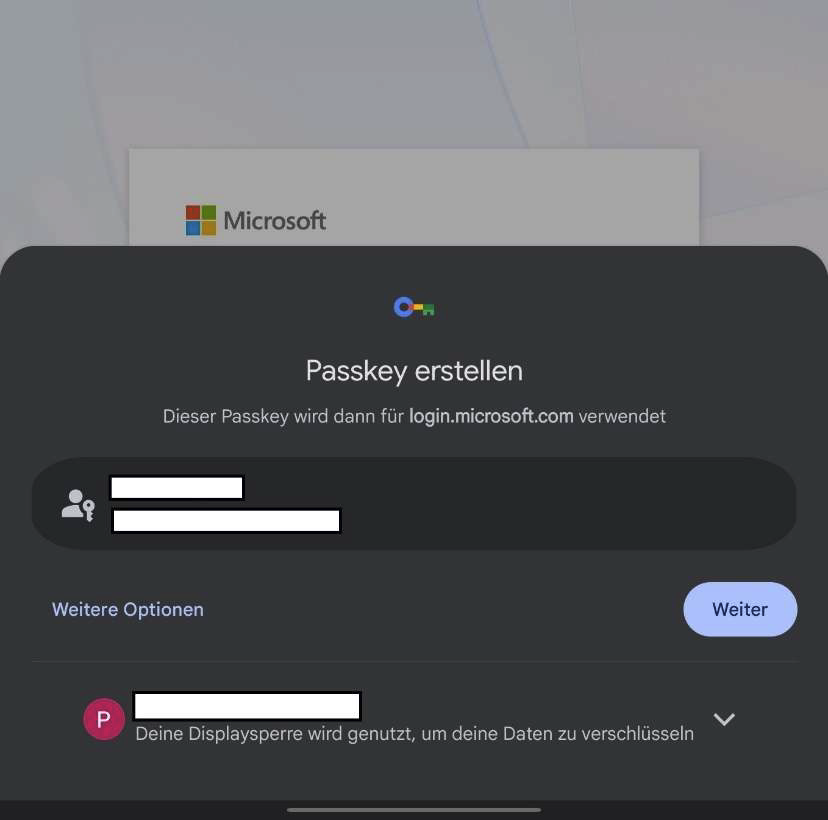
Schritt 4: Passkey hinzufügen | Step 4: Add a passkey | |
Bestätigen Sie den System-Dialog von Android zur Erstellung eines Passkeys für |
| Confirm the Android system dialog to create a passkey for |
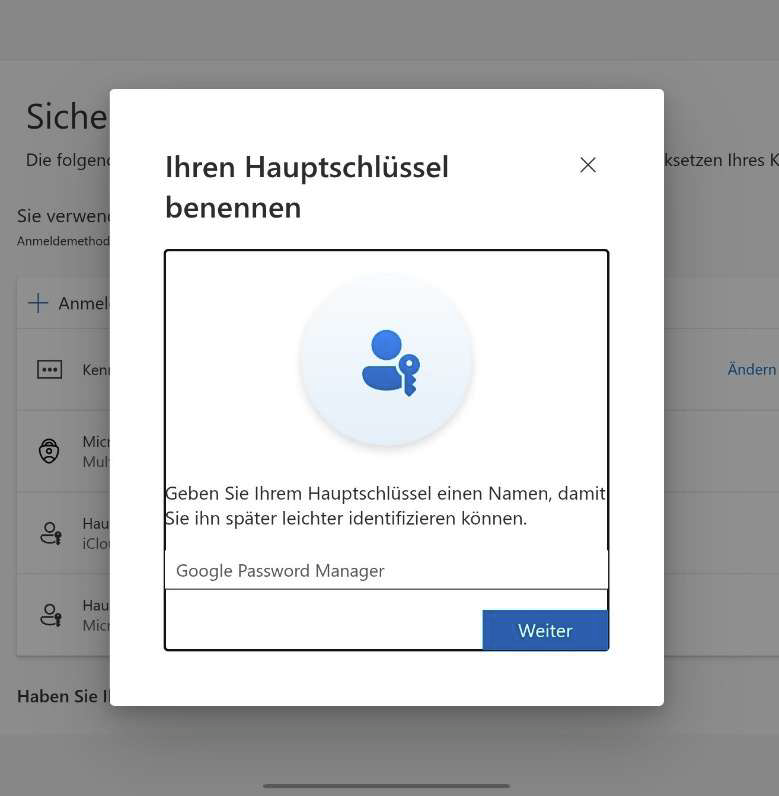
Schritt 5: Passkey benennen | Step 5: Name the passkey | |
Nach der Erstellung fordert Microsoft Sie auf, dem Passkey einen Namen zu geben (z. B. |
| After creation, Microsoft prompts you to give the passkey a name (e.g.,"Google Password Manager"). |
Powered by Atlassian Confluence 9.2.26, themed by Refined 7.9.16